Welcome to Consultora
This documentation will walk you through every step — from first install to full customisation.
Consultora is a professional WordPress consulting theme built for businesses, finance firms, IT companies, HR agencies, and staffing companies. It ships with a custom Consultora Core plugin that registers three purpose-built custom post types, extensive WordPress Customizer controls, full Elementor Page Builder compatibility, Font Awesome icons, and a fully responsive layout.
Custom Post Types
Blog Post, Project & Open Positions CPTs with dedicated meta boxes.
Elementor Ready
Full compatibility with Elementor, Royal Addons & Unlimited Elements.
Customizer
Header, footer, colors, icons and more, all via the live Customizer.
Responsive
Mobile-first, fully responsive design built on Bootstrap grid.
Demo Import
One-click demo importer via One Click Demo Import plugin.
Secure
Comment sanitisation, KSES filtering and nonce-verified AJAX.
Theme Requirements
Before installing Consultora, make sure your hosting environment meets the following requirements:
- WordPress 5.8 or higher
- PHP 7.4 or higher
Recommended PHP Limits
Many issues (white screens, failed demo imports, empty content) are caused by low PHP limits. Ask your host to increase them to at minimum:
max_execution_time   = 180
memory_limit         = 128M
post_max_size        = 64M
upload_max_filesize  = 32M
max_input_time       = 60
max_input_vars = 3000What's Included
When you purchase Consultora from ThemeForest, download the package from your Envato account. You will see two download options:
-
Installable WordPress File Only — a single
consultora.zipready to upload directly through the WordPress admin. - All Files & Documentation — the full package including the installable theme zip, bundled plugins, demo data, and this documentation.
Full Package Contents
consultora.zip— Installable WordPress theme filedemo/content.xml— Demo content filedemo/widgets.wie— Demo widget settingsdemo/customizer.dat— Demo Customizer settingsdocumentation/— This documentation
WordPress Information
You must have a working WordPress installation to use this theme. Below are helpful resources if you need help setting up WordPress:
- WordPress Codex — General info and installation guide
- First Steps With WordPress — Broad coverage of core concepts
- FAQ New To WordPress — Most popular beginner FAQs
Theme Installation — WordPress Dashboard
The easiest way to install Consultora. Follow these steps:
- Download the theme zip from your Envato Downloads page.
- Log in to your WordPress admin panel (e.g.
https://yoursite.com/wp-admin). - Go to Appearance → Themes.
- Click Add New, then Upload Theme.
- Click Choose File and select
consultora.zipfrom your computer. - Click Install Now and wait for the upload to complete.
- Click Activate. You will be redirected to the Themes page with Consultora active.
- You will now see a notice prompting you to install required plugins — see the Plugin Installation section.
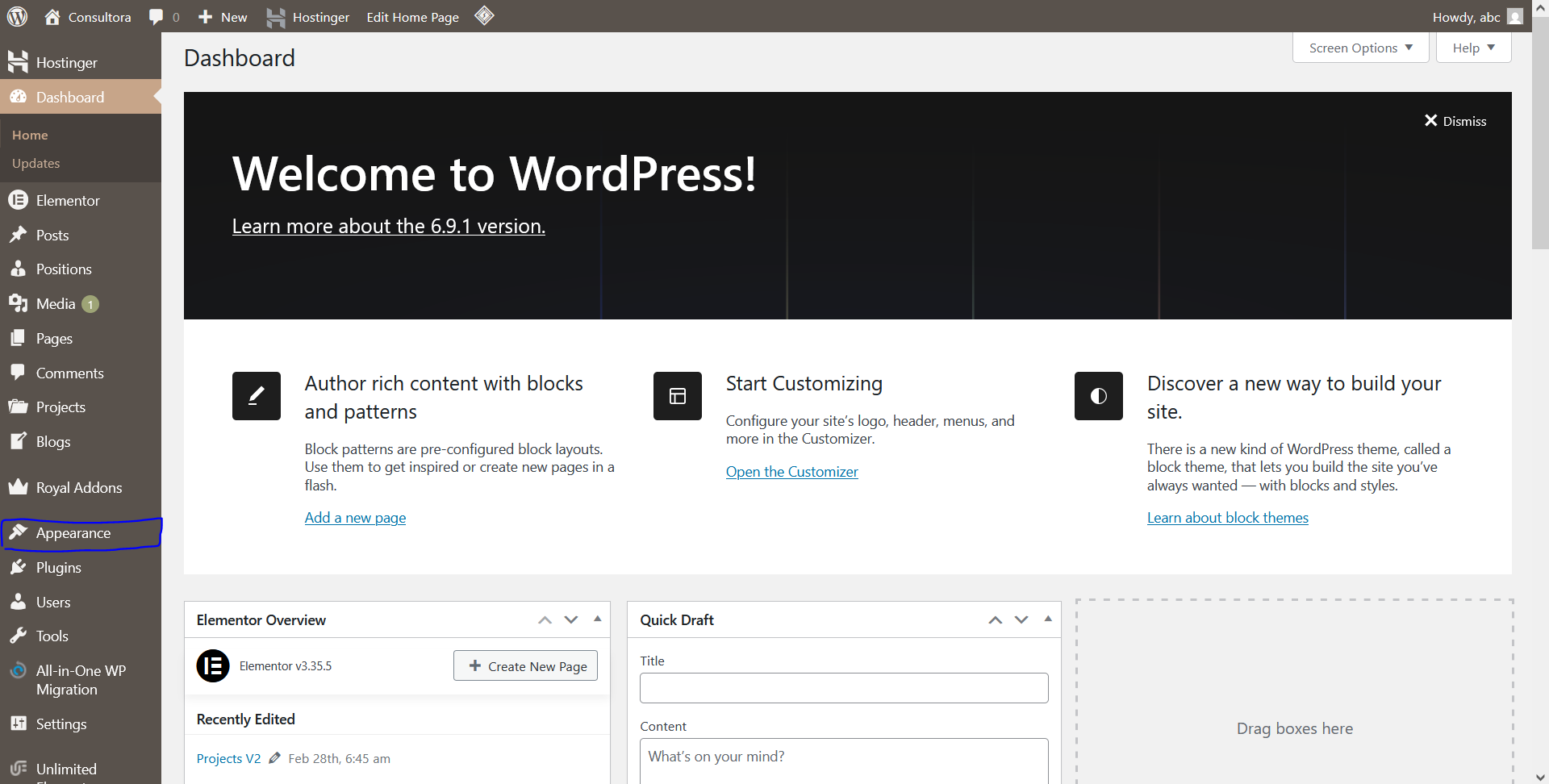
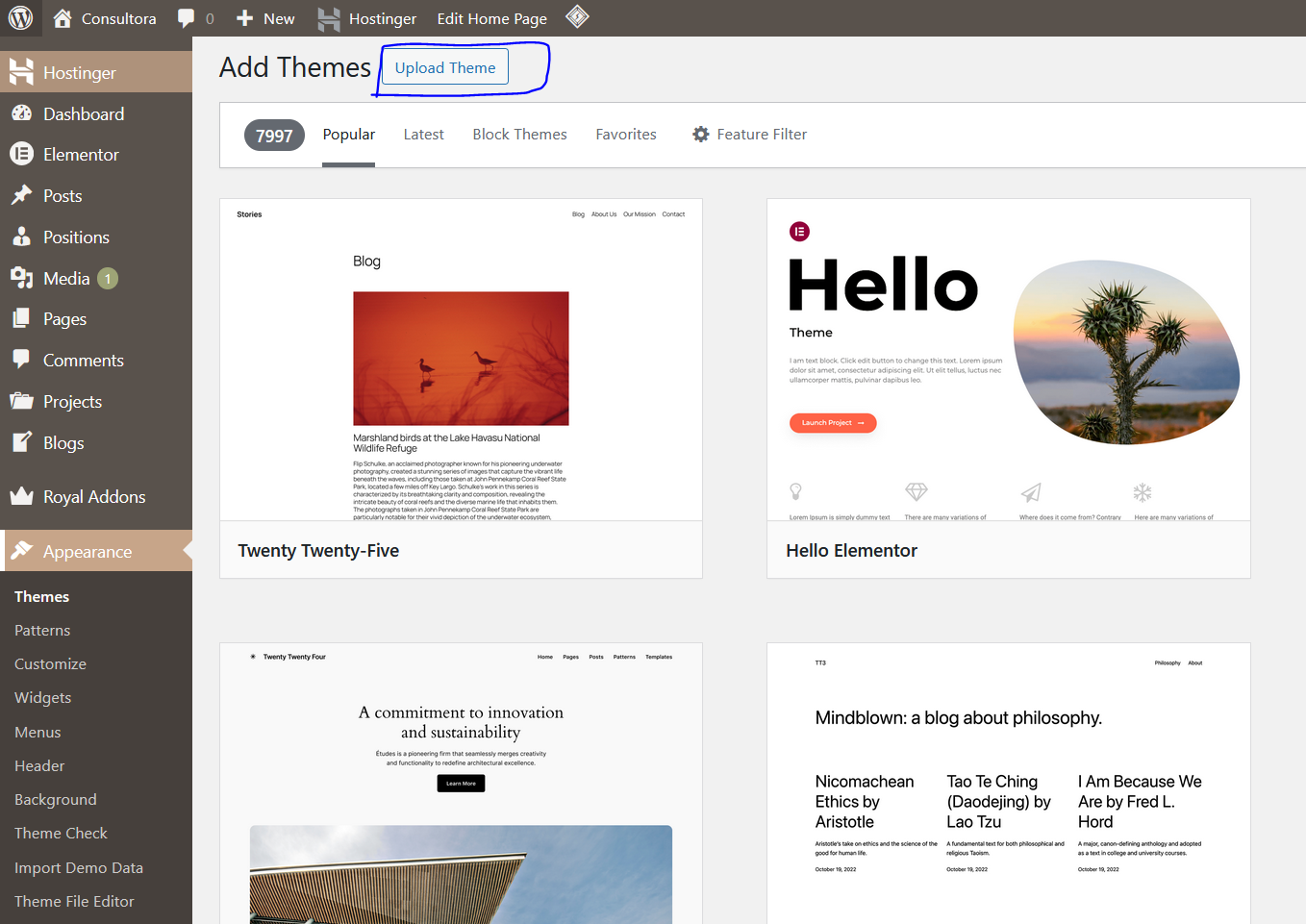
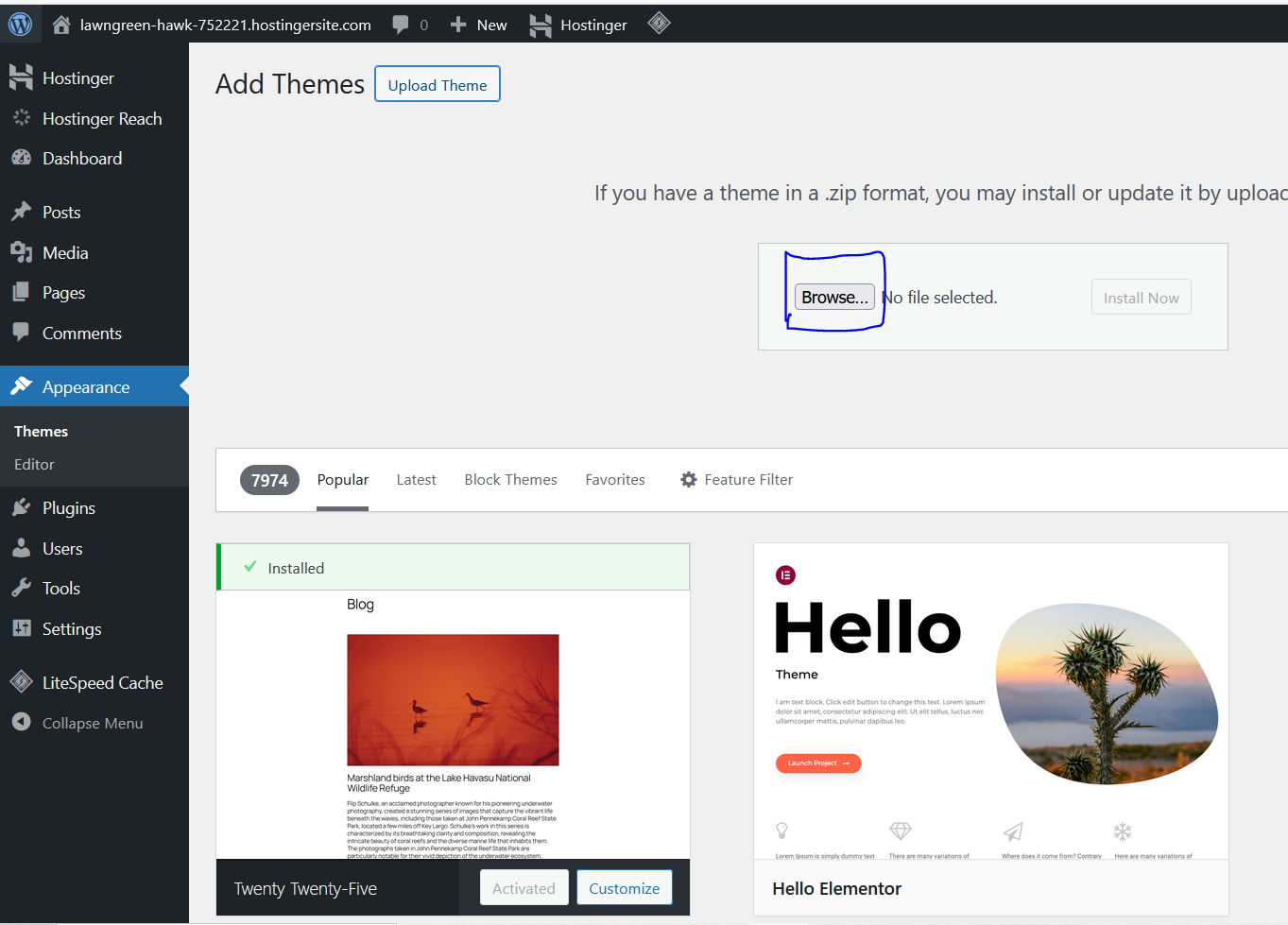
consultora.zip only — not the entire
package zip downloaded from ThemeForest. Uploading the outer zip will fail.
Theme Installation — FTP
If your host has upload size limits that prevent dashboard installation, use FTP.
- Extract the full package zip downloaded from ThemeForest.
- Locate the
consultorafolder inside the extracted files. - Connect to your server via an FTP client (e.g. FileZilla).
- Navigate to
wp-content/themes/on your server. - Upload the entire
consultorafolder. - In your WordPress dashboard go to Appearance → Themes and click Activate next to Consultora.
wp-content/themes/consultora/ on your server.
Plugin Installation
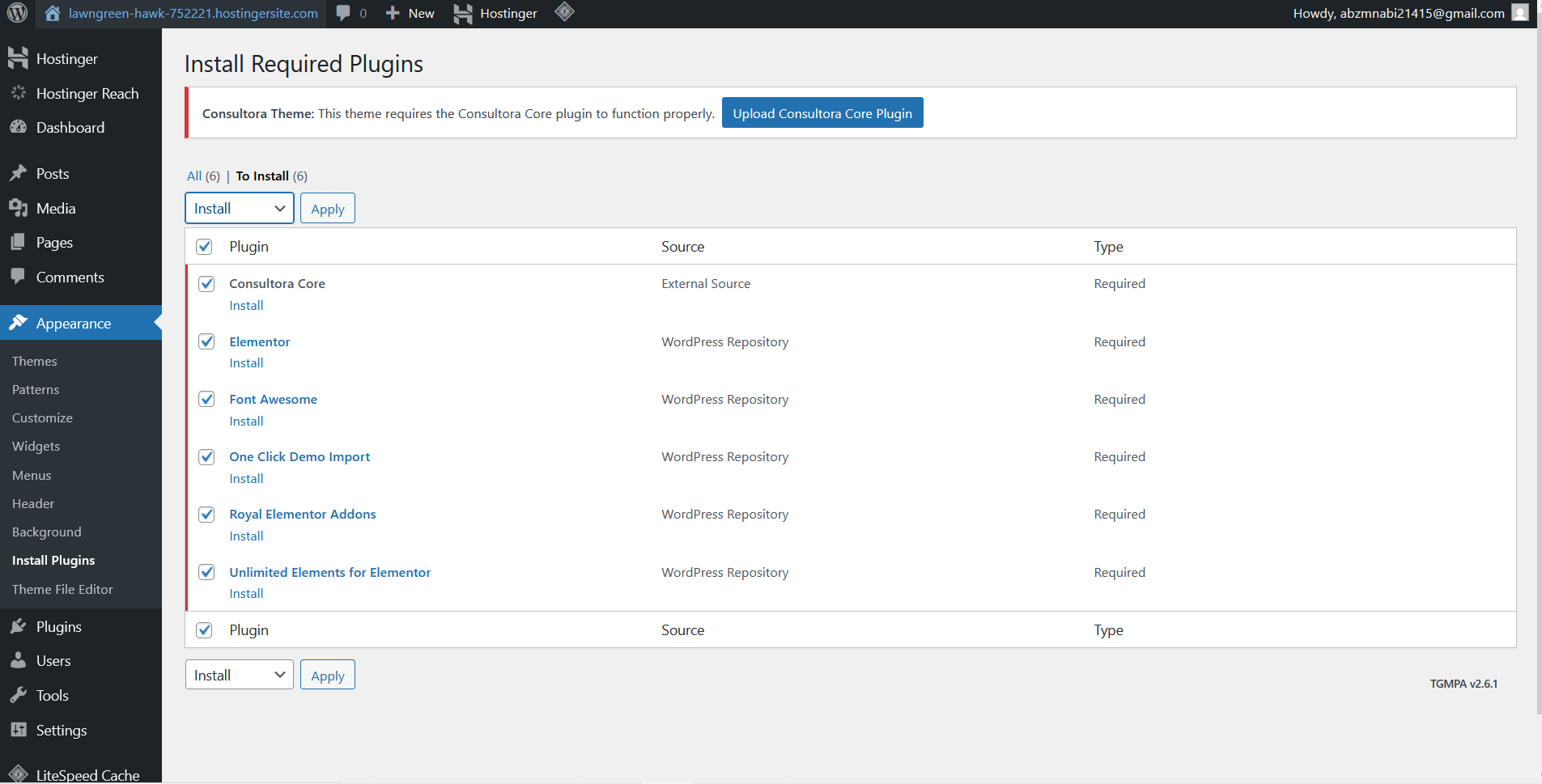
After activating Consultora you will see an admin notice asking you to install the required plugins. Click Begin installing plugins to proceed.
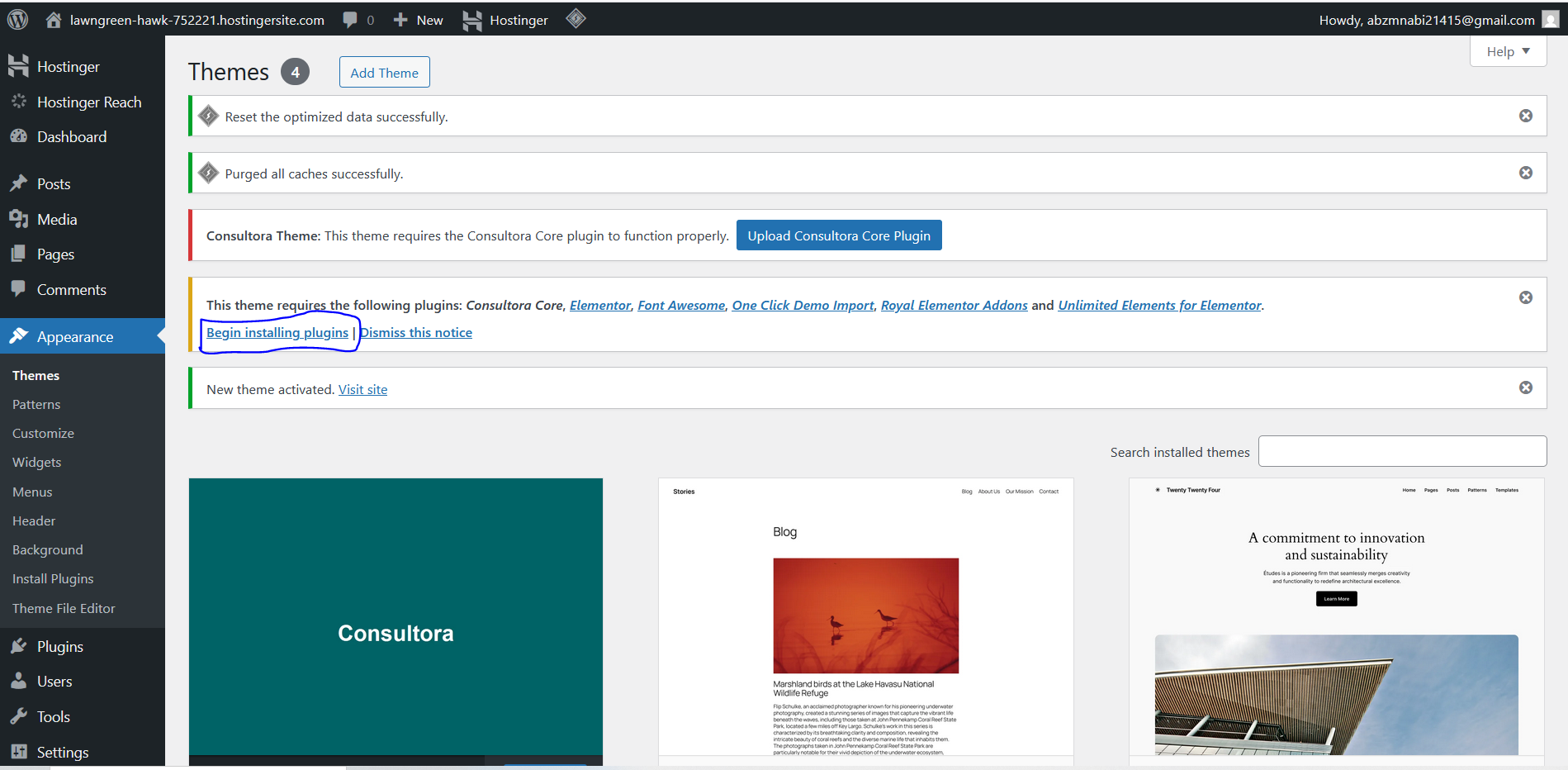
Required & Recommended Plugins
| Plugin | Source | Status | Purpose |
|---|---|---|---|
| Consultora Core | abzmnabi.com/consultora-core.zip (automatically comes when installed) | Required | Registers Blog Post, Project & Positions CPTs, meta boxes, and demo import hooks. |
| Elementor | wordpress.org | Required | Page builder used to design all page layouts. |
| Royal Elementor Addons | wordpress.org | Required | Extended Elementor widgets used in demo layouts. |
| Unlimited Elements for Elementor | wordpress.org | Required | Additional widget library for Elementor. |
| One Click Demo Import | wordpress.org | Recommended | Required only if you want to import demo content. |
How to Install
- Go to the Install Required Plugins page (the link appears in the admin notice).
- Check all plugins you want to install from the list.
- Select Install from the bulk actions dropdown and click Apply.
- After installation, select Activate from the dropdown and click Apply again (if not activated).
Demo Import
Consultora ships with a full demo dataset that recreates the live preview in minutes. The One Click Demo Import plugin handles the import.
Steps to Import
- Make sure One Click Demo Import and all required plugins are active.
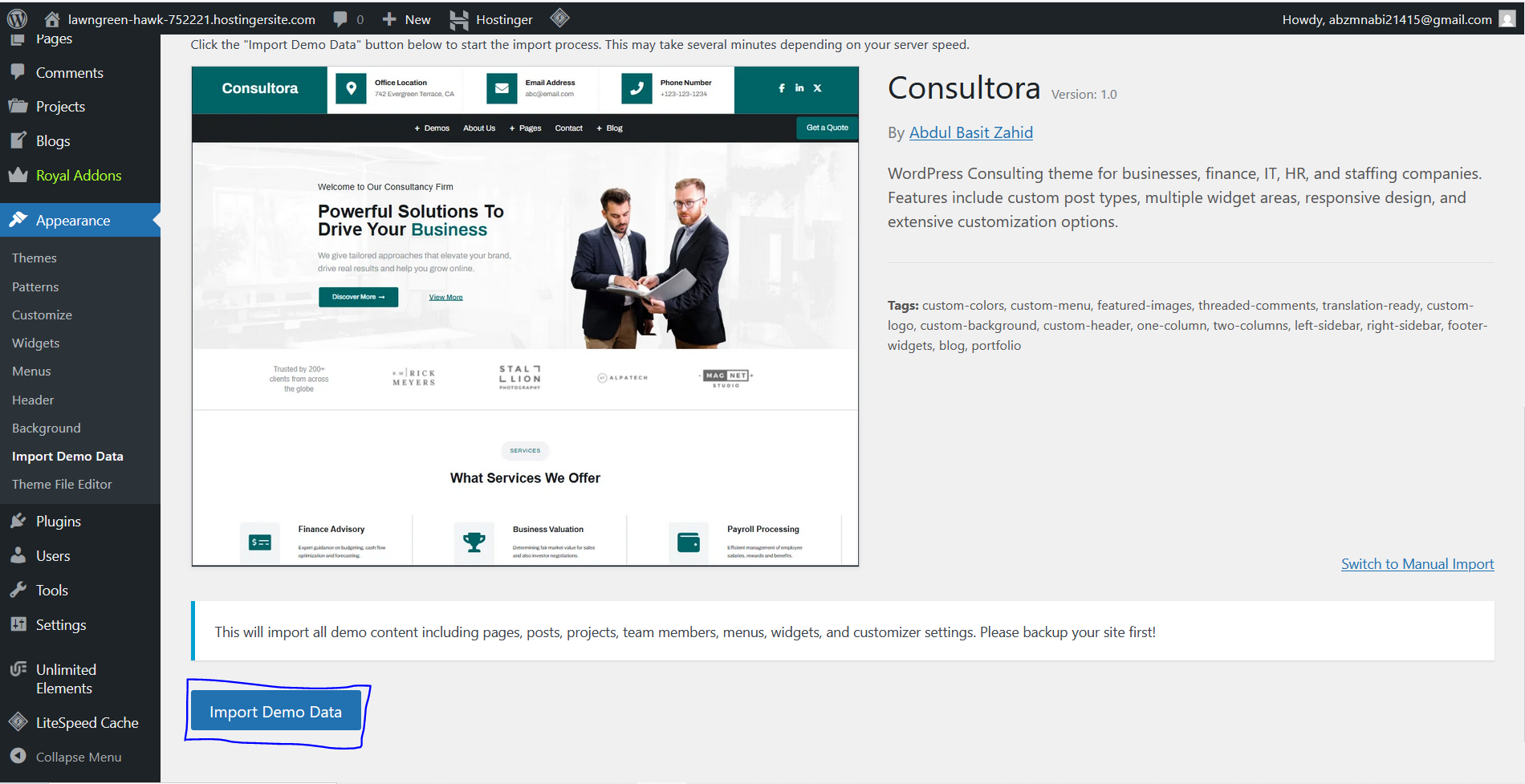
- Navigate to Appearance → Import Demo Data in the WordPress admin.
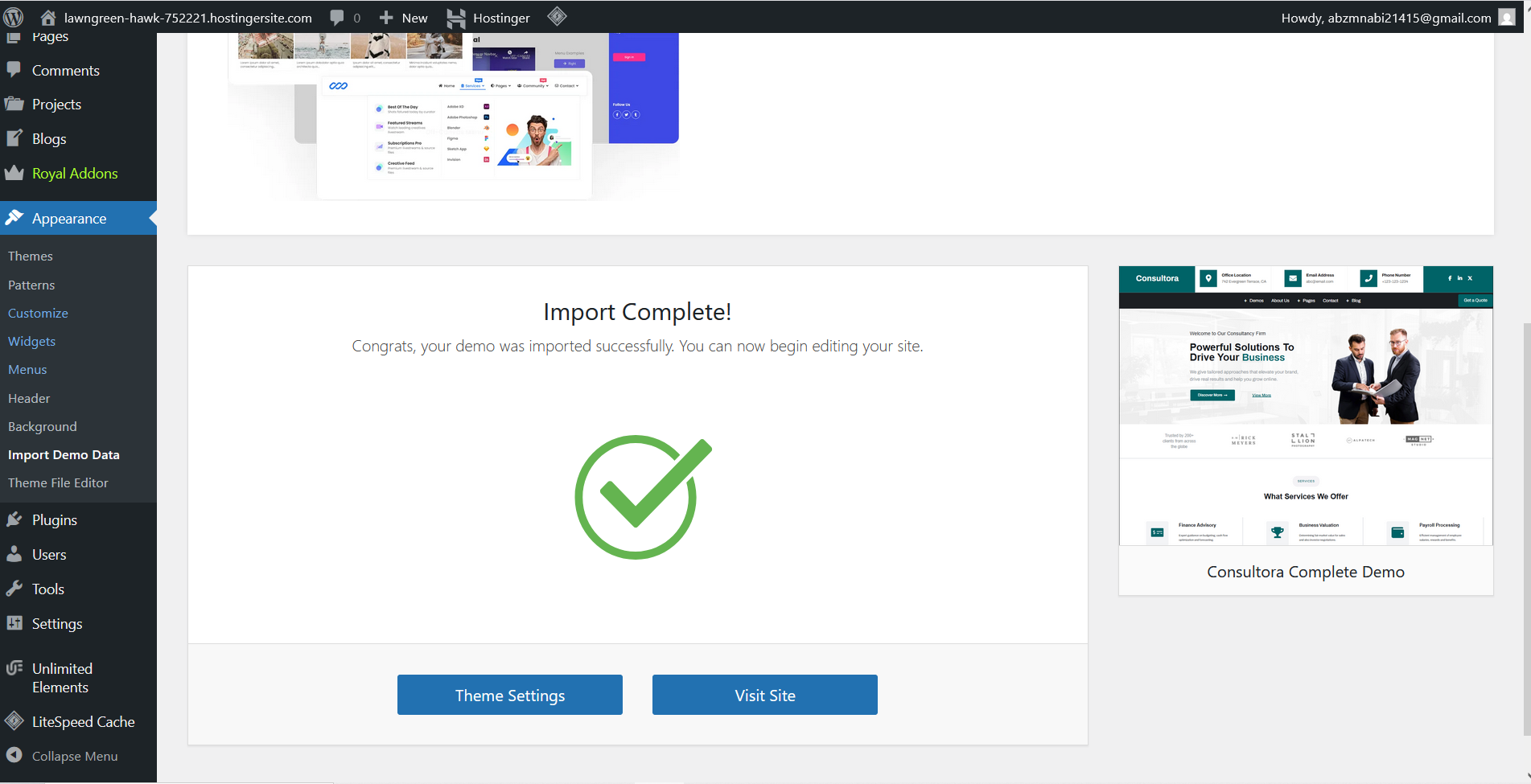
- Click Import Demo next to the Consultora Demo preview.
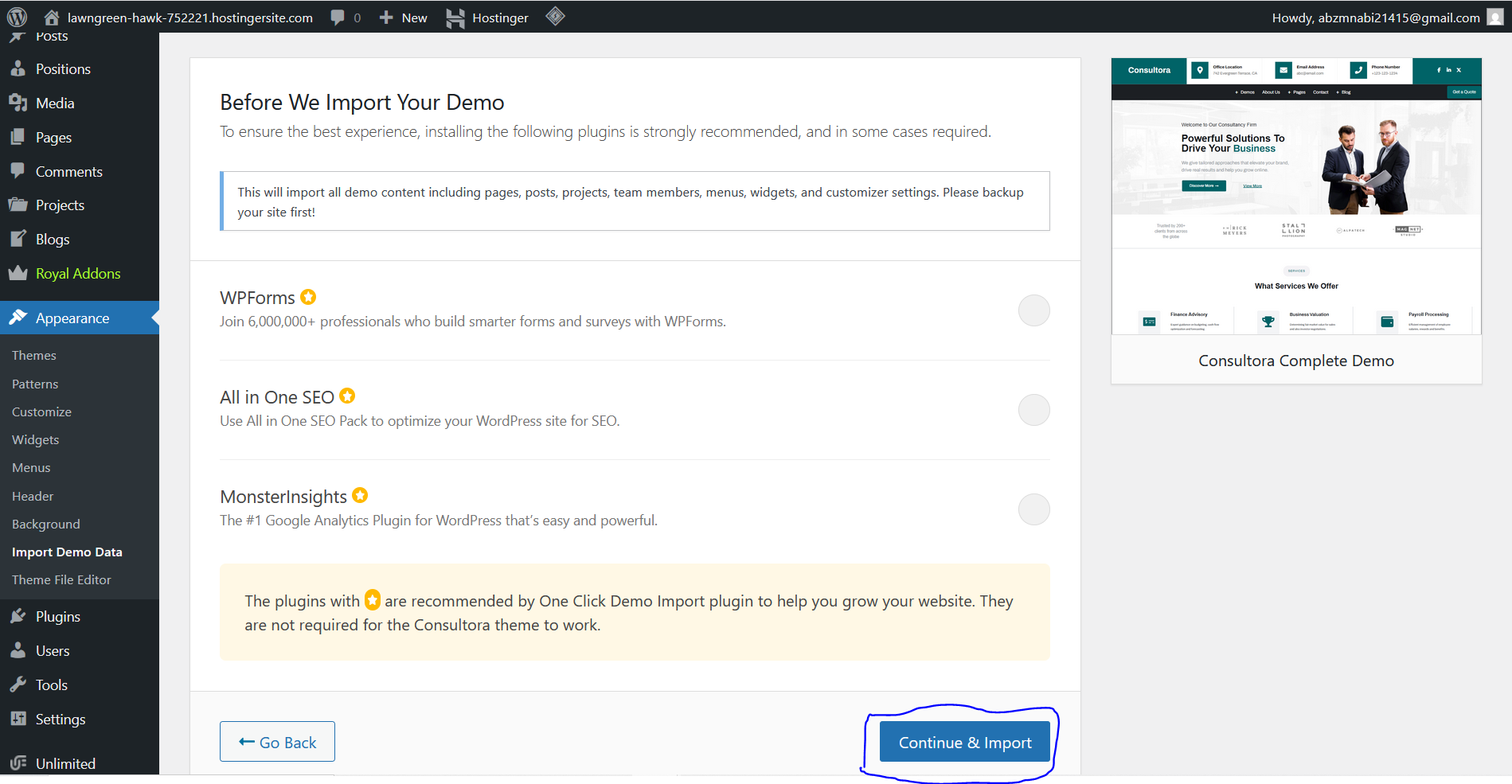
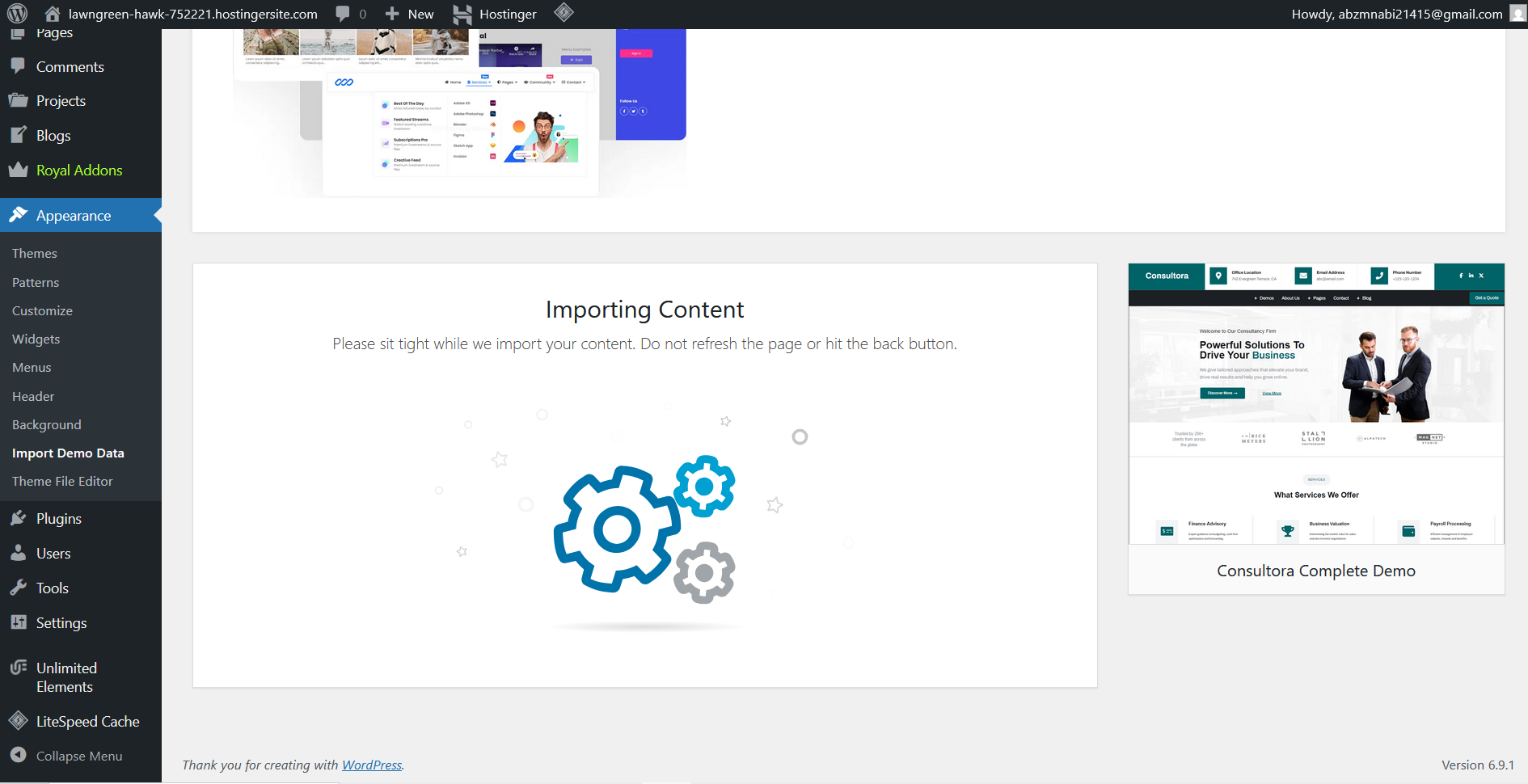
- Confirm the import in the popup. Wait while content, widgets, and Customizer settings are imported — this can take 1–5 minutes.
- After import, navigate to Settings → Reading, set Your homepage displays to A static page, and choose
Homeas the front page andBlogas the posts page. - Save changes. Your site should now match the demo.
Customizer — Header Settings
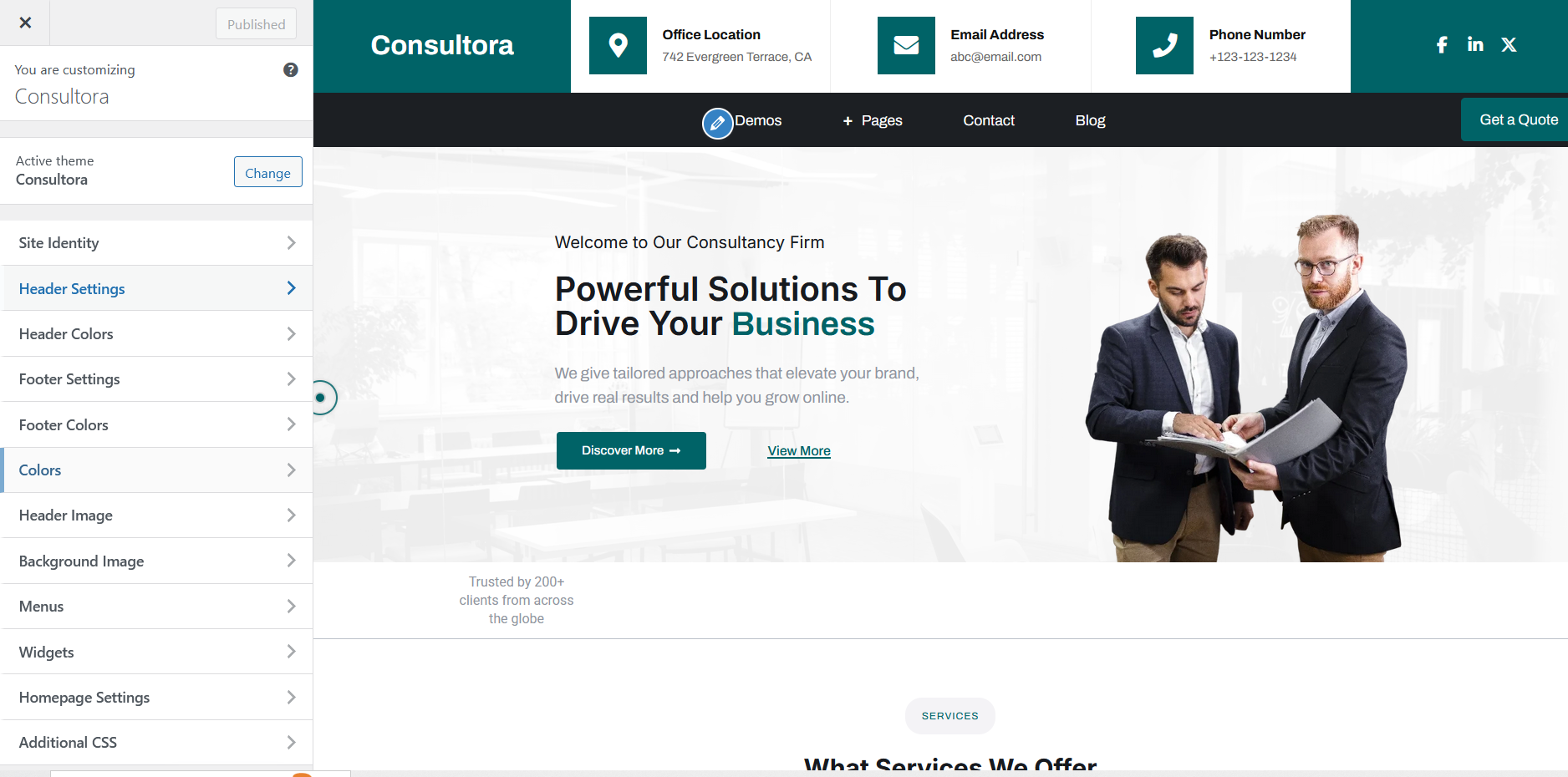
Navigate to Appearance → Customize → Header Settings to configure the contact information and social links displayed in the top header bar.
Contact Information
| Setting | Default | Description |
|---|---|---|
| Office Label | Office Location | Text label shown above the office address. |
| Office Location | 742 Evergreen Terrace, 62704 | The physical address displayed in the header. |
| Email Label | Email Address | Text label shown above the email. |
| Email Address | abc@report.com | Contact email shown in the header. |
| Phone Label | Phone Number | Text label shown above the phone number. |
| Phone Number | +1 123-123-1234 | Contact phone displayed in the header. |
Social Media URLs
| Setting | Default | Description |
|---|---|---|
| LinkedIn URL | # | URL for your LinkedIn profile/page. |
| Twitter URL | # | URL for your Twitter/X profile. |
| Facebook URL | # | URL for your Facebook page. |
| Instagram URL | (empty) | URL for your Instagram profile. Leave empty to hide. |
| YouTube URL | # | URL for your YouTube channel. |
Icons (Font Awesome Classes)
Each contact item and social link uses Font Awesome 6. You can change the icon by entering any valid FA class name. Find icons at fontawesome.com/icons.
| Setting | Default Class |
|---|---|
| Office Icon | fa fa-map-marker-alt |
| Email Icon | fa fa-envelope |
| Phone Icon | fa fa-phone |
| Facebook Icon | fab fa-facebook-f |
| LinkedIn Icon | fab fa-linkedin-in |
| Twitter Icon | fab fa-twitter |
| YouTube Icon | fab fa-youtube |
Navigation CTA Button
| Setting | Default | Description |
|---|---|---|
| CTA Button Text | GET A QUOTE | Label on the call-to-action button in the navigation bar. |
| CTA Button URL | # | Page the button links to (e.g. your contact page URL). |
| Show Search Icon | Enabled | Toggle the search magnifier icon in the navigation bar. |
Customizer — Header Colors
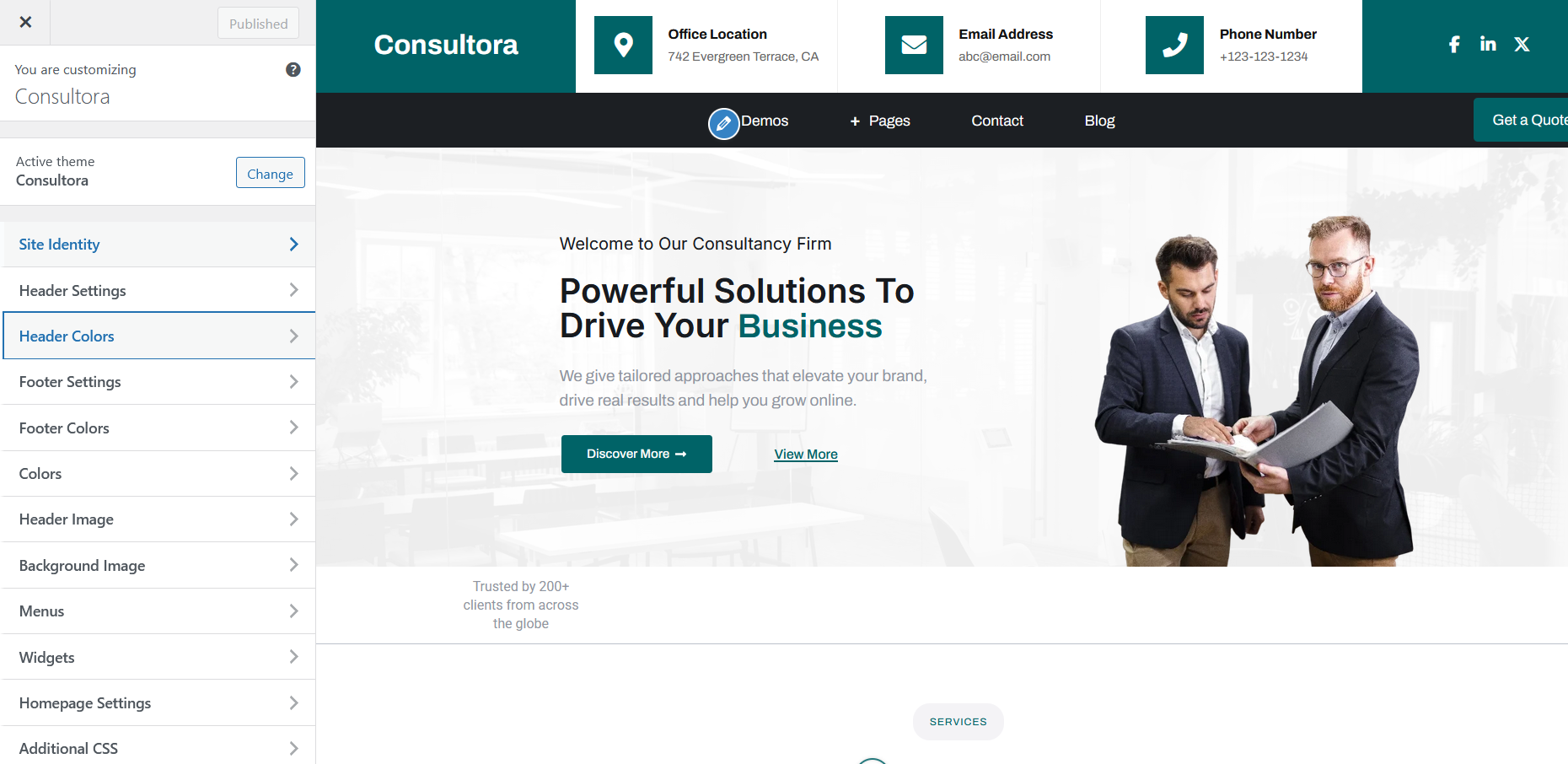
Go to Appearance → Customize → Header Colors to control every colour used in the header area.
| Setting | Default | Where Applied |
|---|---|---|
| Header Background Color | #006367 | Top bar background behind logo and contact info. |
| Navigation Background Color | #2c3e50 | The main navigation bar background. |
| CTA Button Color | #006367 | "Get a Quote" button background. |
| Menu Hover Color | #006367 | Nav link text and background on hover / active state. |
| Logo Section Background | transparent | Background behind the site logo. |
| Contact Section Background | transparent | Background behind contact info block. |
| Social Icons Section Background | transparent | Background behind social icons block. |
| Logo Text Color | #ffffff | Site name text when no image logo is set. |
| Contact Info Text Color | #ffffff | Labels and values in the contact block. |
| Social Icons Color | #ffffff | Social icon foreground color. |
| Social Icons Background | #006367 | Background circle/square behind each social icon. |
| Contact Info Icon Color | #ffffff | Icon foreground for phone/email/location icons. |
| Contact Info Icon Background | #006367 | Background behind contact icons. |
Customizer — Footer Settings
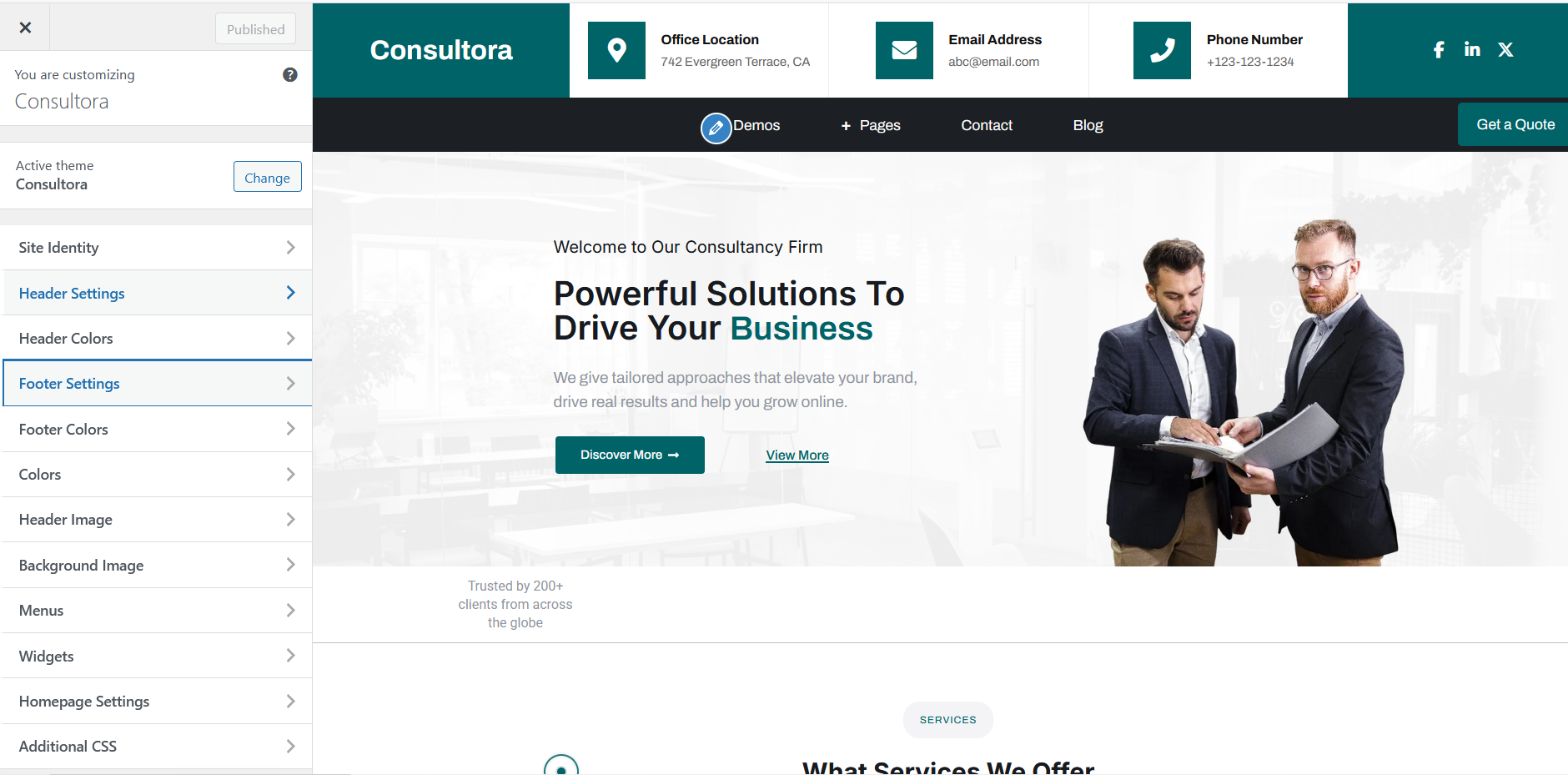
Go to Appearance → Customize → Footer Settings to manage the content displayed in the footer.
Contact Information
| Setting | Default | Description |
|---|---|---|
| Footer Address | 742 Evergreen Terrace, 62704 | Physical address shown in footer column 1. |
| Footer Phone | +1 123-123-1234 | Phone number in footer column 1. |
| Footer Email | support@abc.com | Email address in footer column 1. |
CTA Strip
| Setting | Default | Description |
|---|---|---|
| Footer CTA Title | Would like to talk about your future project? | Headline in the footer call-to-action strip. |
| Footer CTA Button Text | Get in touch | Button label in the CTA strip. |
| Footer CTA Button URL | # | URL the button points to. |
Social Media & Legal
| Setting | Default |
|---|---|
| Footer Twitter URL | # |
| Footer Facebook URL | # |
| Footer LinkedIn URL | # |
| Footer YouTube URL | # |
| Copyright Text | © 2023 Brand, Inc. |
| Privacy Link Text | Privacy |
| Terms Link Text | Terms |
Footer Icons (Font Awesome)
| Setting | Default Class |
|---|---|
| Address Icon | fa fa-map-marker-alt |
| Phone Icon | fa fa-phone |
| Email Icon | fa fa-envelope |
| Button Icon | fa fa-arrow-right |
Navigation Menus
Consultora registers five menu locations. Assign menus via Appearance → Menus.
| Location | Slug | Where Used |
|---|---|---|
| Primary Menu | primary | Main horizontal navigation bar. Supports dropdown submenus. |
| Top Menu | top-menu | Secondary menu, usable in header top bar. |
| Mobile Menu | mobile-menu | Menu displayed when the hamburger icon is tapped on mobile. |
| Footer Menu | footer-menu | Link list shown in footer column 2. |
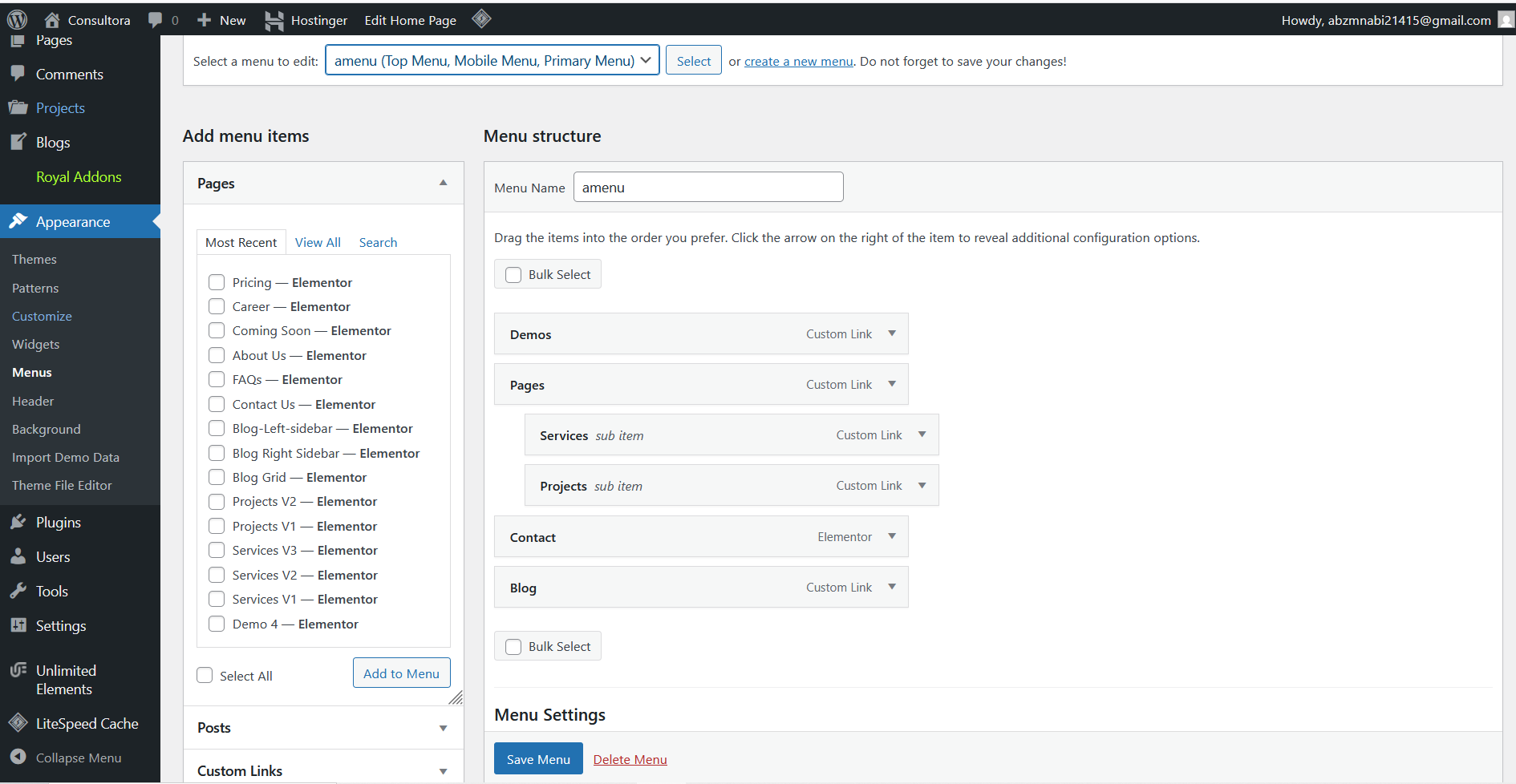
Adding Dropdown Submenus
- Open Appearance → Menus and select your menu.
- Drag a menu item slightly to the right so it appears indented under a parent item.
- A small arrow will appear in the parent item's navigation bar label, indicating a dropdown.
- Save the menu.
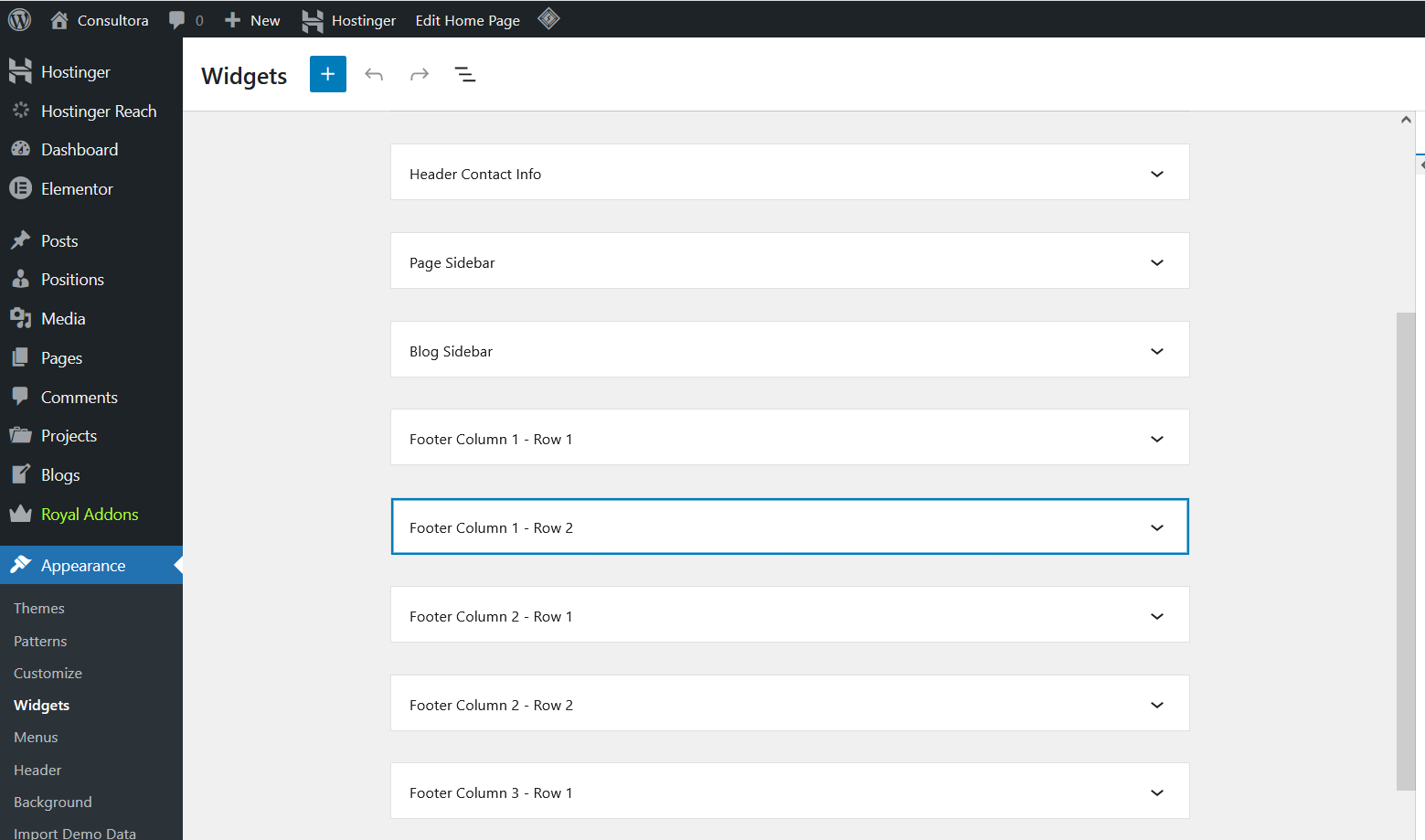
Widget Areas
Consultora registers 8 widget areas. Manage them via Appearance → Widgets.
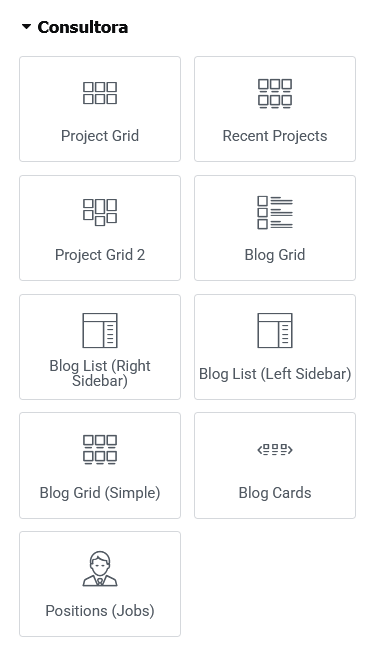
Elementor Widgets
Consultora ships with a set of custom-built Elementor widgets registered by the Consultora Core plugin. These widgets are available directly inside the Elementor editor panel under the Consultora widget category.
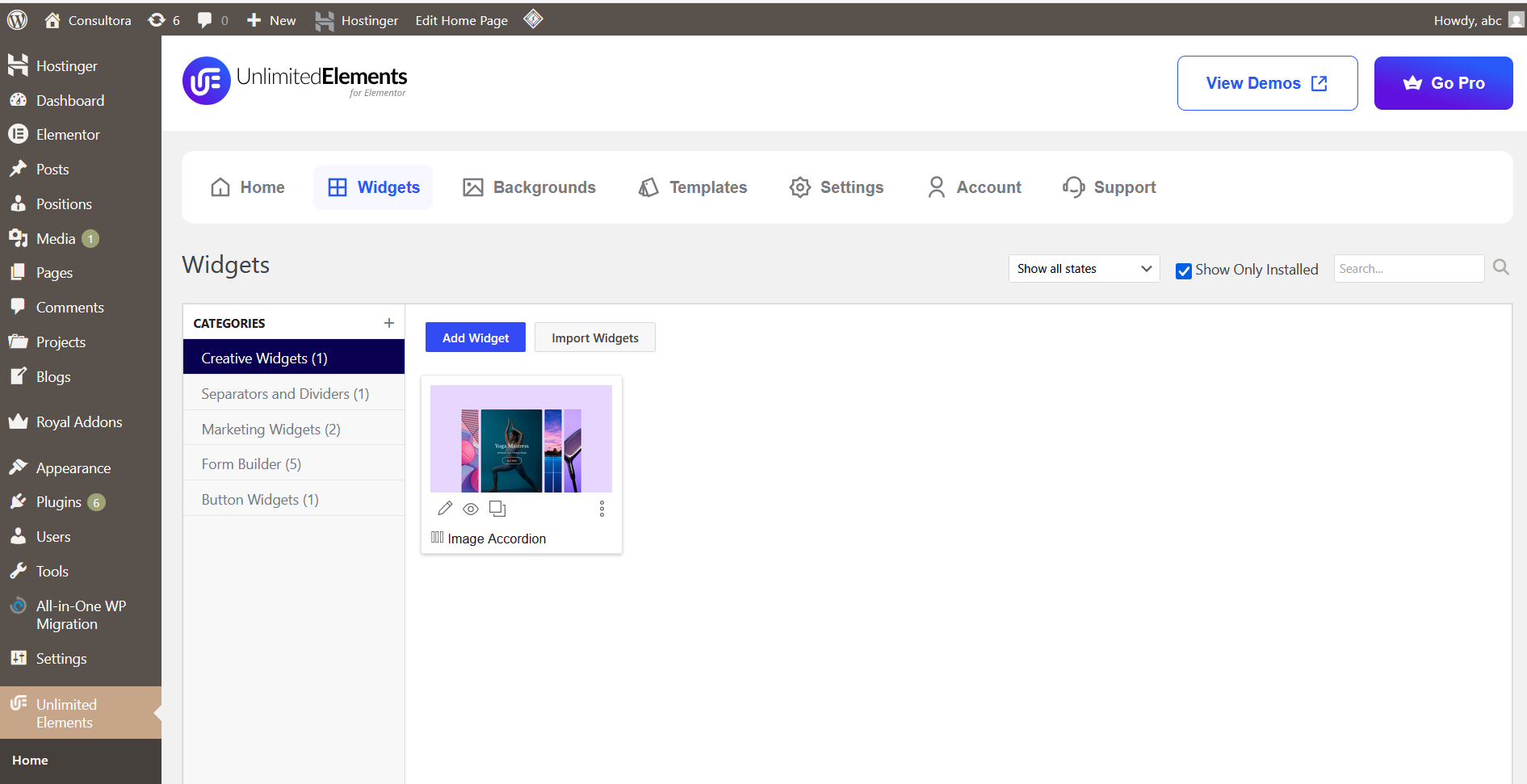
Unlimited Elements — Widgets to Download
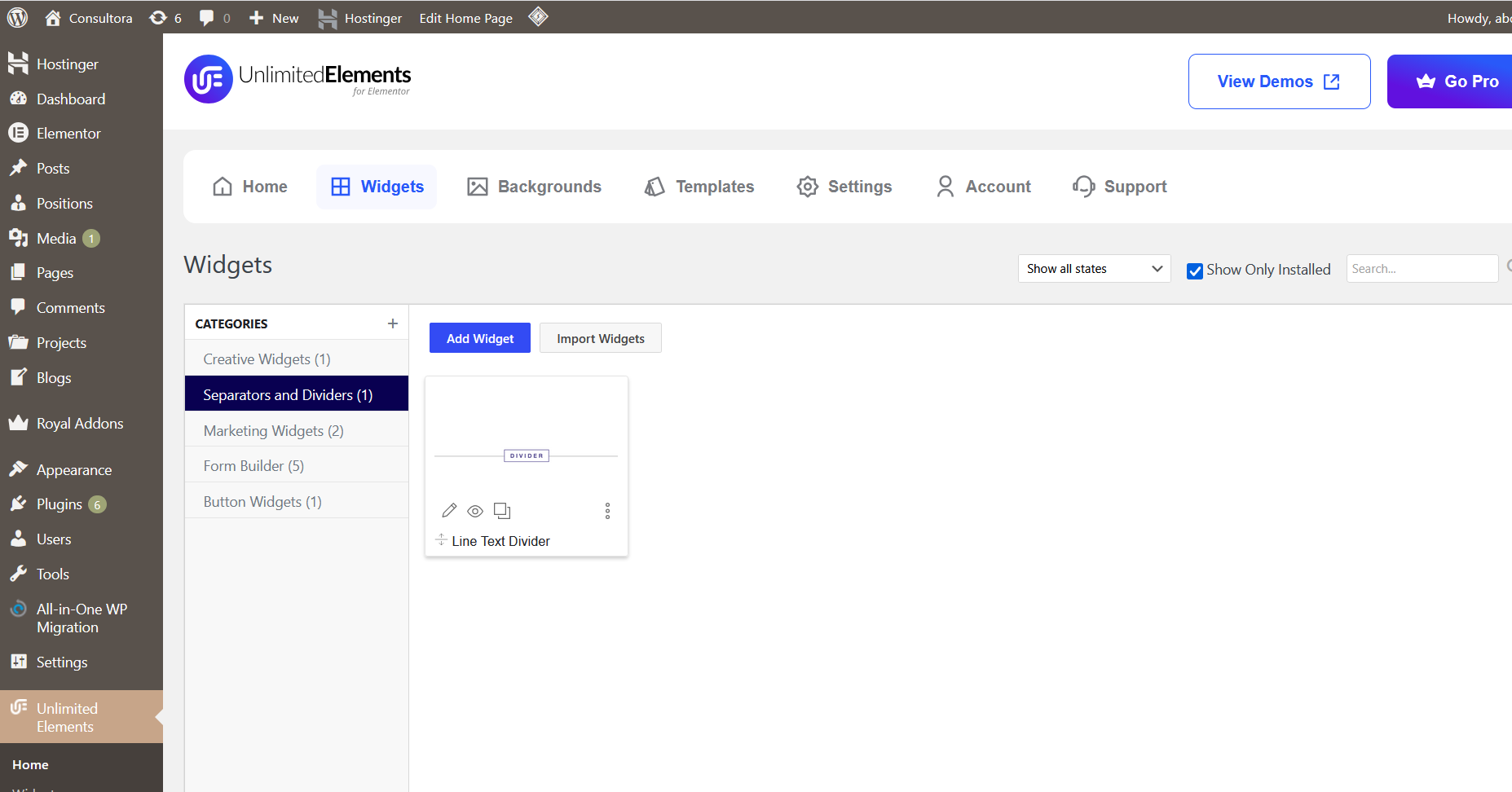
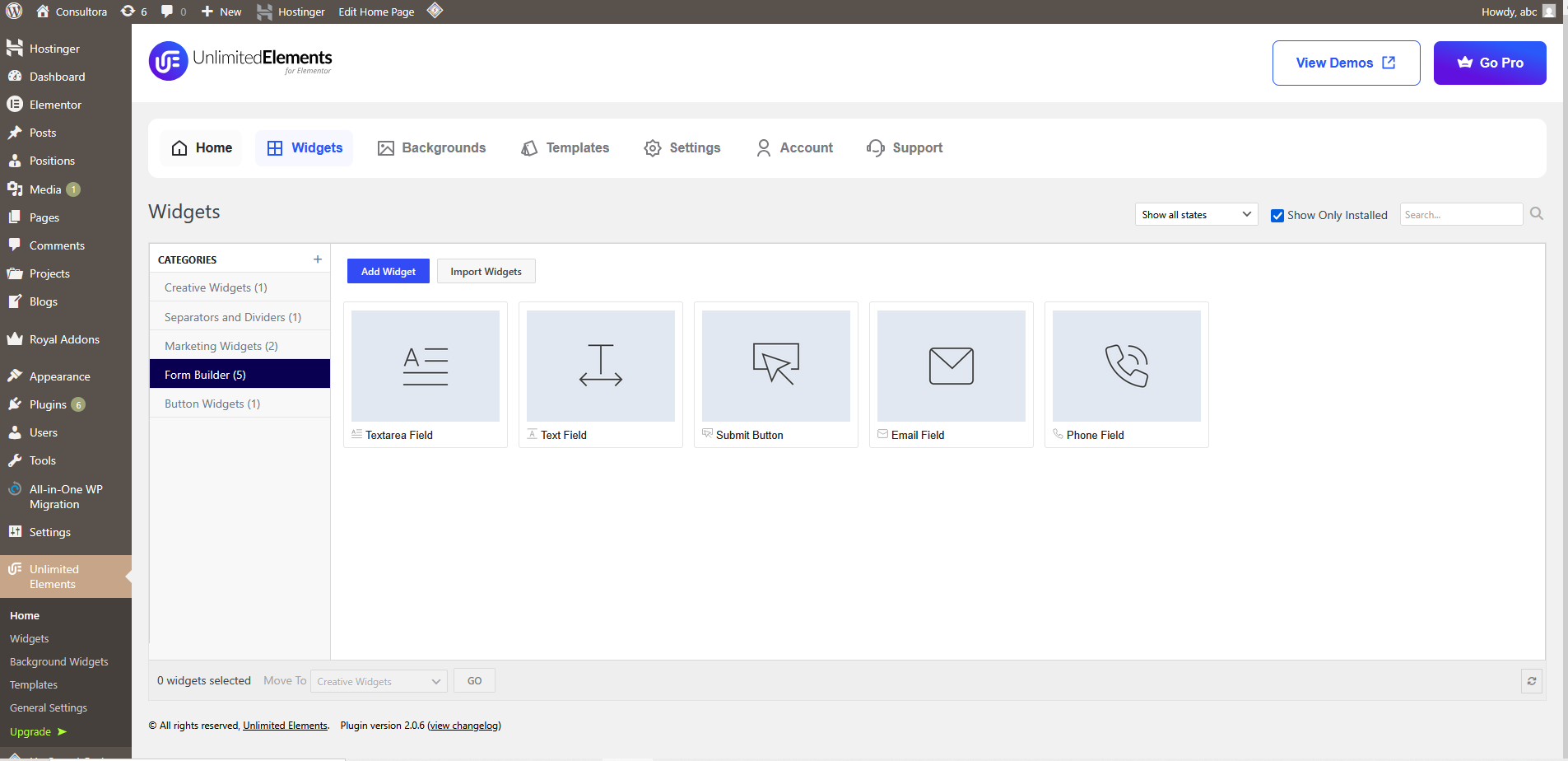
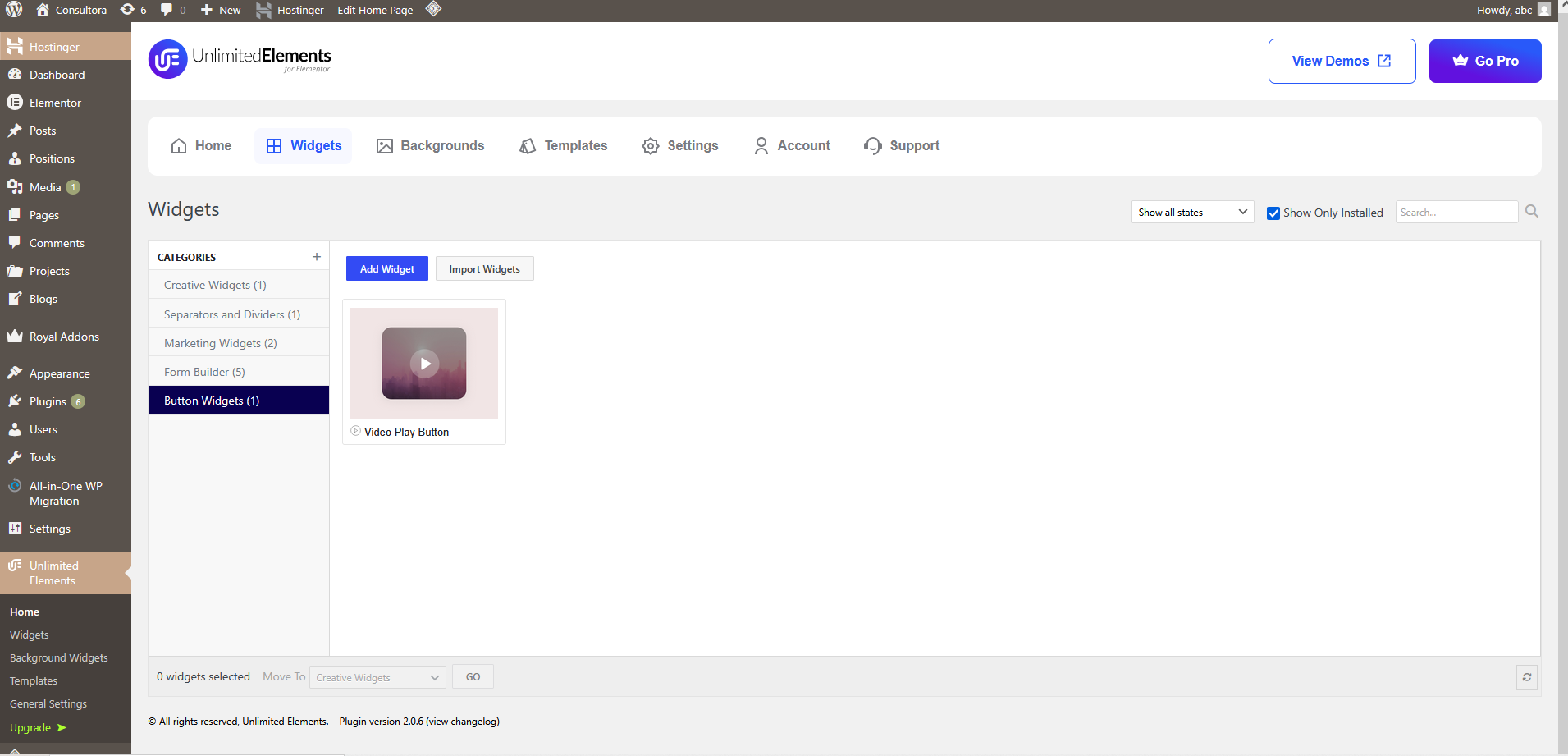
Some page sections use free widgets from the Unlimited Elements for Elementor plugin's online library. After installing the plugin, go to Unlimited Elements → Widget Library and download the following widgets:

Blog Posts (Custom Post Type)
Consultora registers a Blog Post custom post type (slug: blog_post)
via the Consultora Core plugin. This is separate from WordPress's built-in Posts and includes
dedicated meta boxes.
Creating a Blog Post
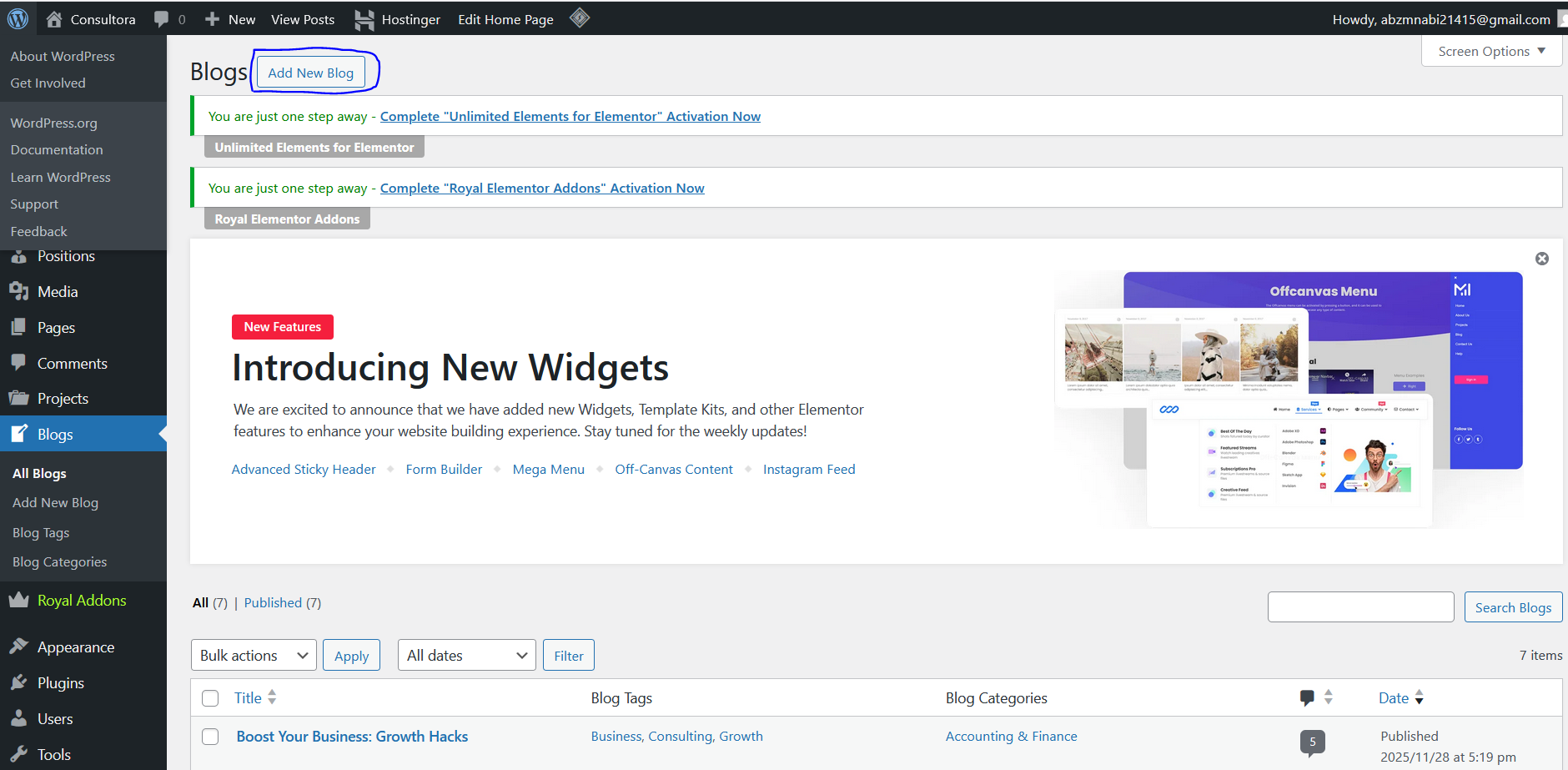
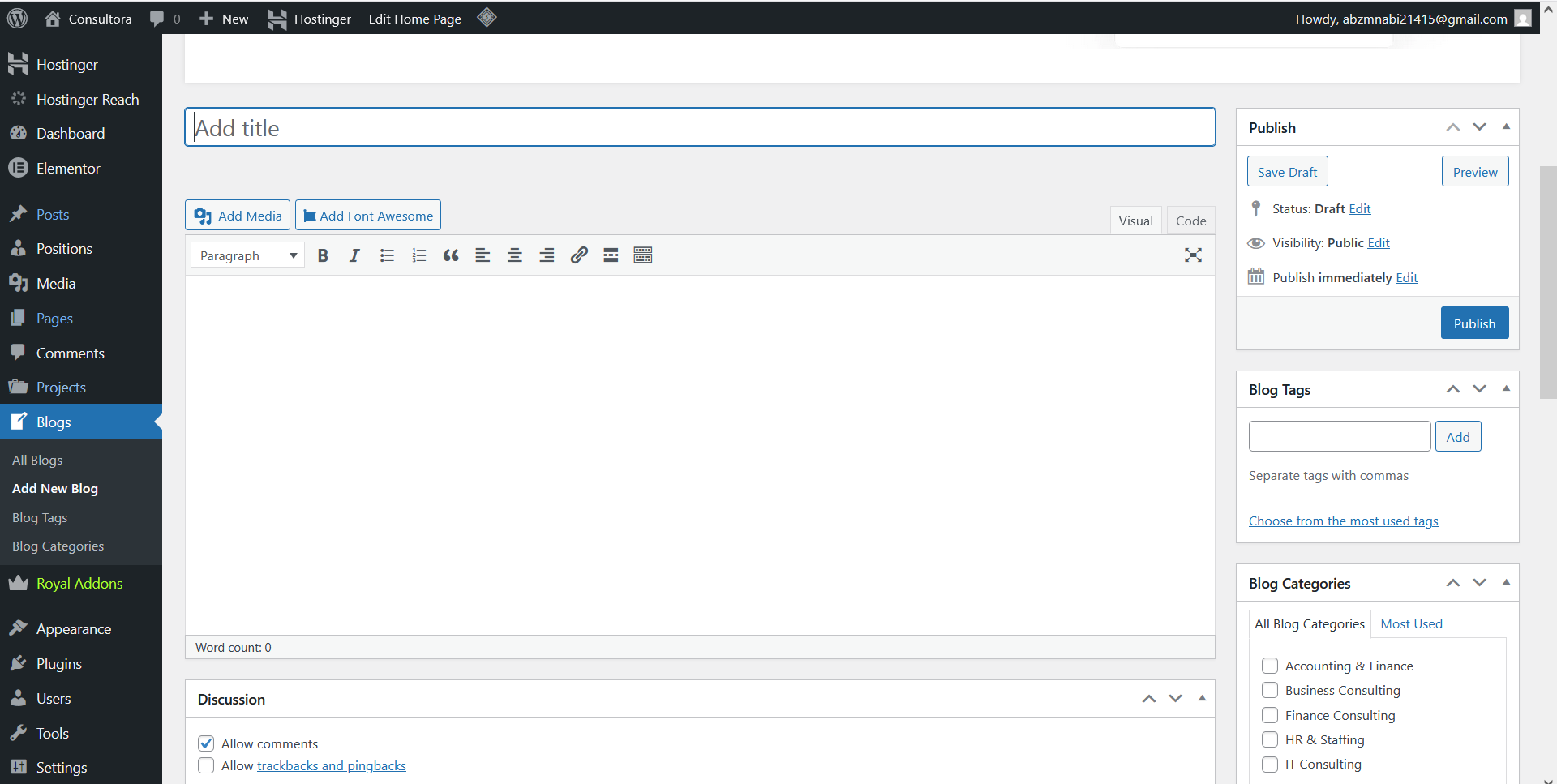
- In the admin sidebar, click Blog Posts → Add New.
- Enter a title and write your content in the Classic Editor (Gutenberg is disabled for this CPT for better meta box layout).
- Set a Featured Image from the right-hand side panel — this is used as the post thumbnail.
- Fill in the Blog Post Details meta box (reading time, thumbnail text, etc.).
- Assign Categories and Tags from the sidebar panels.
- Click Publish.
Projects (Custom Post Type)
The Project CPT (slug: project) provides a full portfolio
system with project categories, client info, date, and location meta fields.
Creating a Project
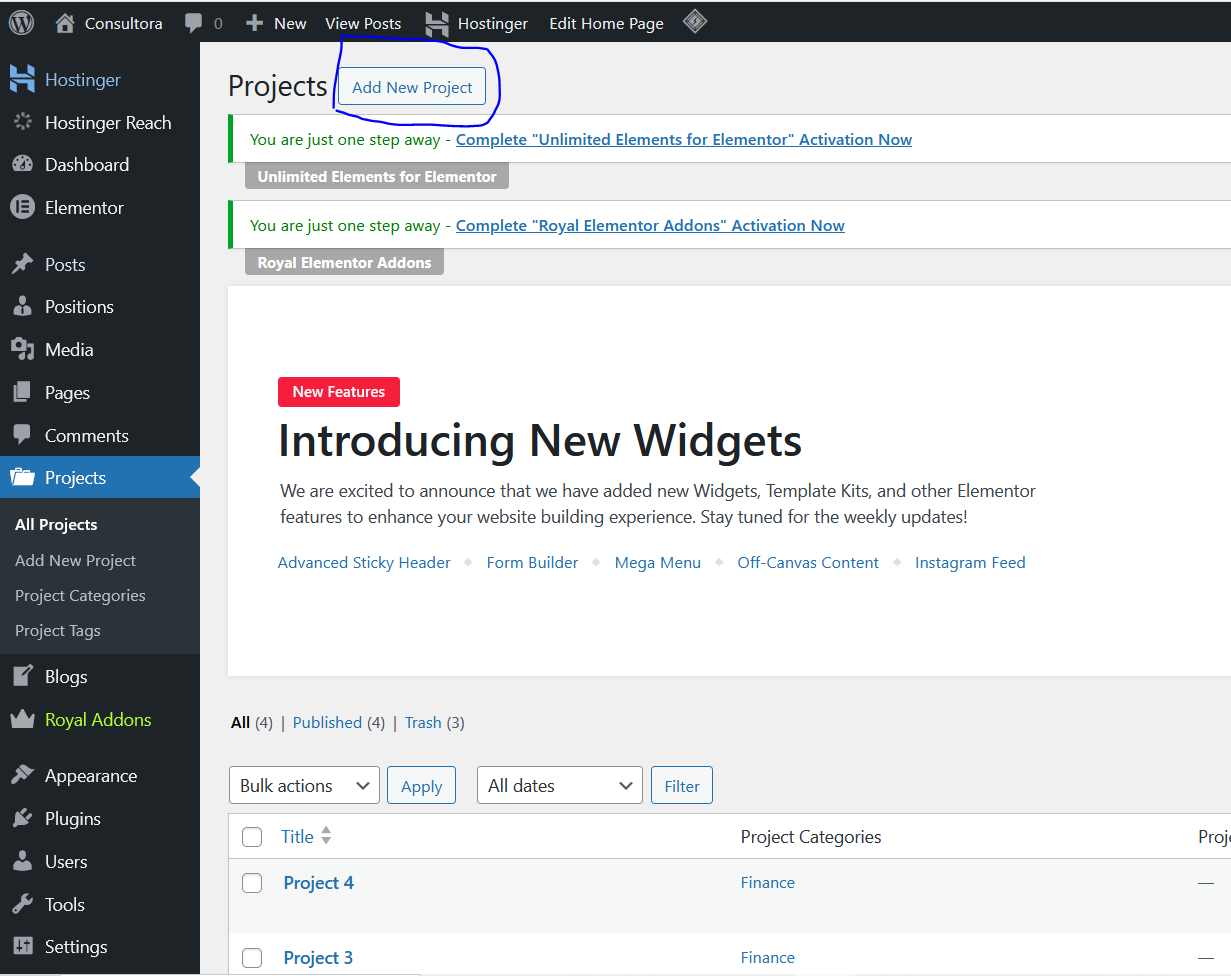
- Go to Projects → Add New in the admin sidebar.
- Add a title and description content.
- Fill in the Project Details meta box fields:
| Field | Description |
|---|---|
| Project Date | Completion or start date of the project. |
| Project Client | Client name displayed in the single project sidebar. |
| Project Location | City or country where the project took place. |
- Assign a Project Category from the right panel (used for filtering on archive pages).
- Set a Featured Image — this is the primary project image.
- Click Publish.

Open Positions (Custom Post Type)
The Positions CPT (slug: positions) powers a careers/jobs section.
Each position has dedicated meta boxes for position details and application settings.
Creating an Open Position
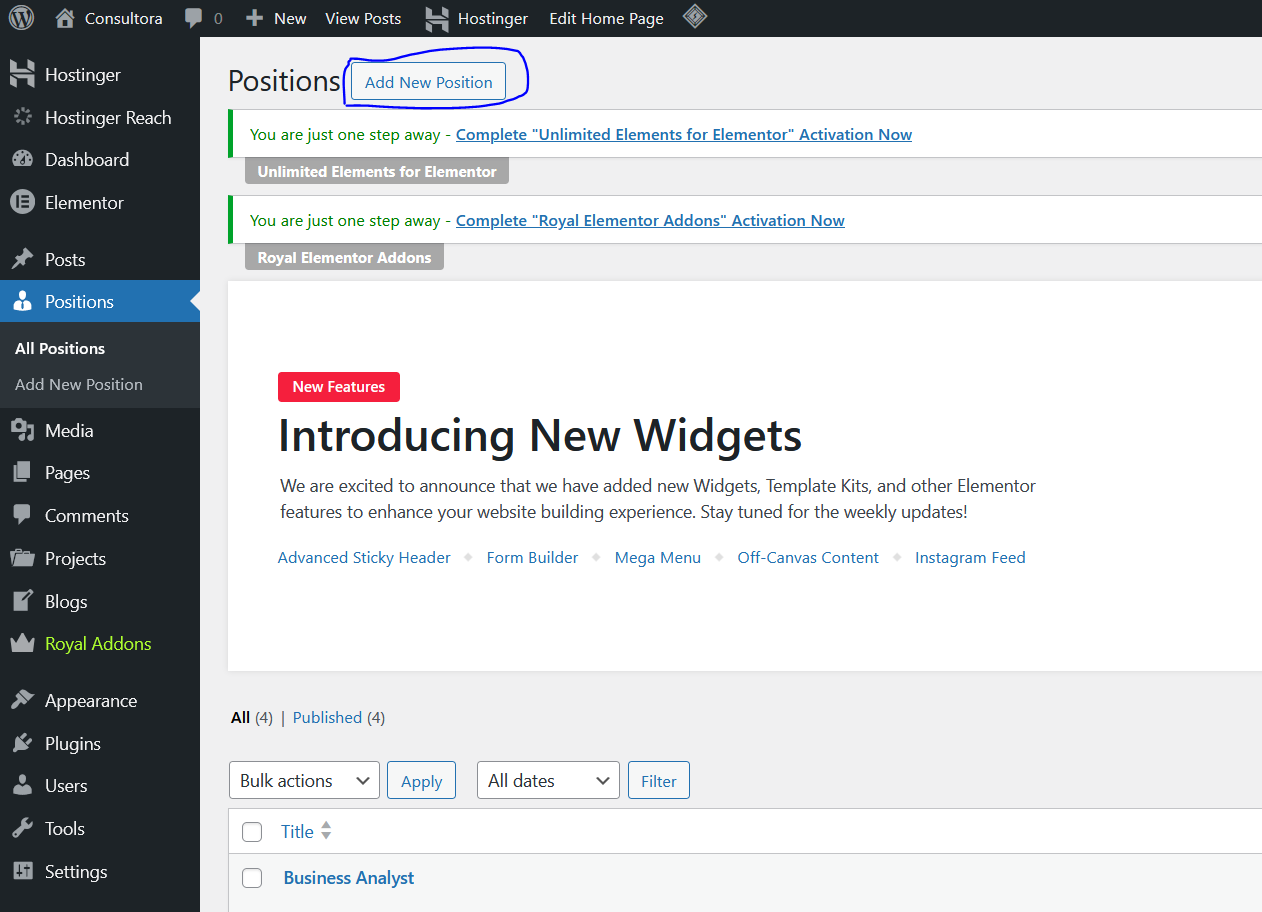
- Go to Open Positions → Add New.
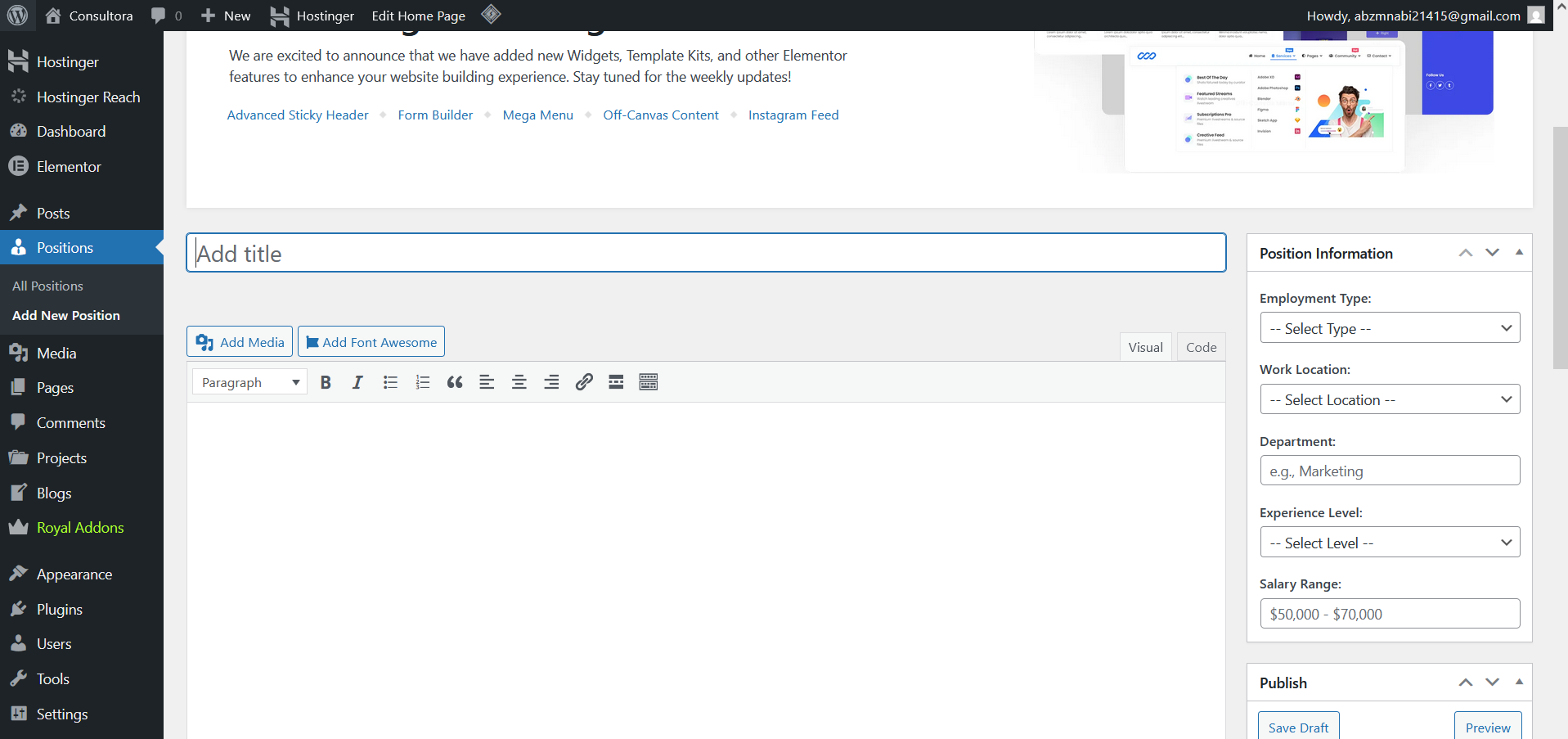
- Enter a job title and description.
- Fill in the Position Basic Info meta box:
| Field | Description |
|---|---|
| Department | Team or department for this role. |
| Location | Office location or "Remote". |
| Employment Type | Full-time, Part-time, Contract, etc. |
| Salary Range | Optional salary range to display. |
- Fill in the Application Settings meta box to set an application email or link.
- Click Publish.
Elementor Page Builder
All page layouts in Consultora are built with Elementor. The front-page.php template outputs a blank canvas (just header + footer) so Elementor has full control over the page content area.
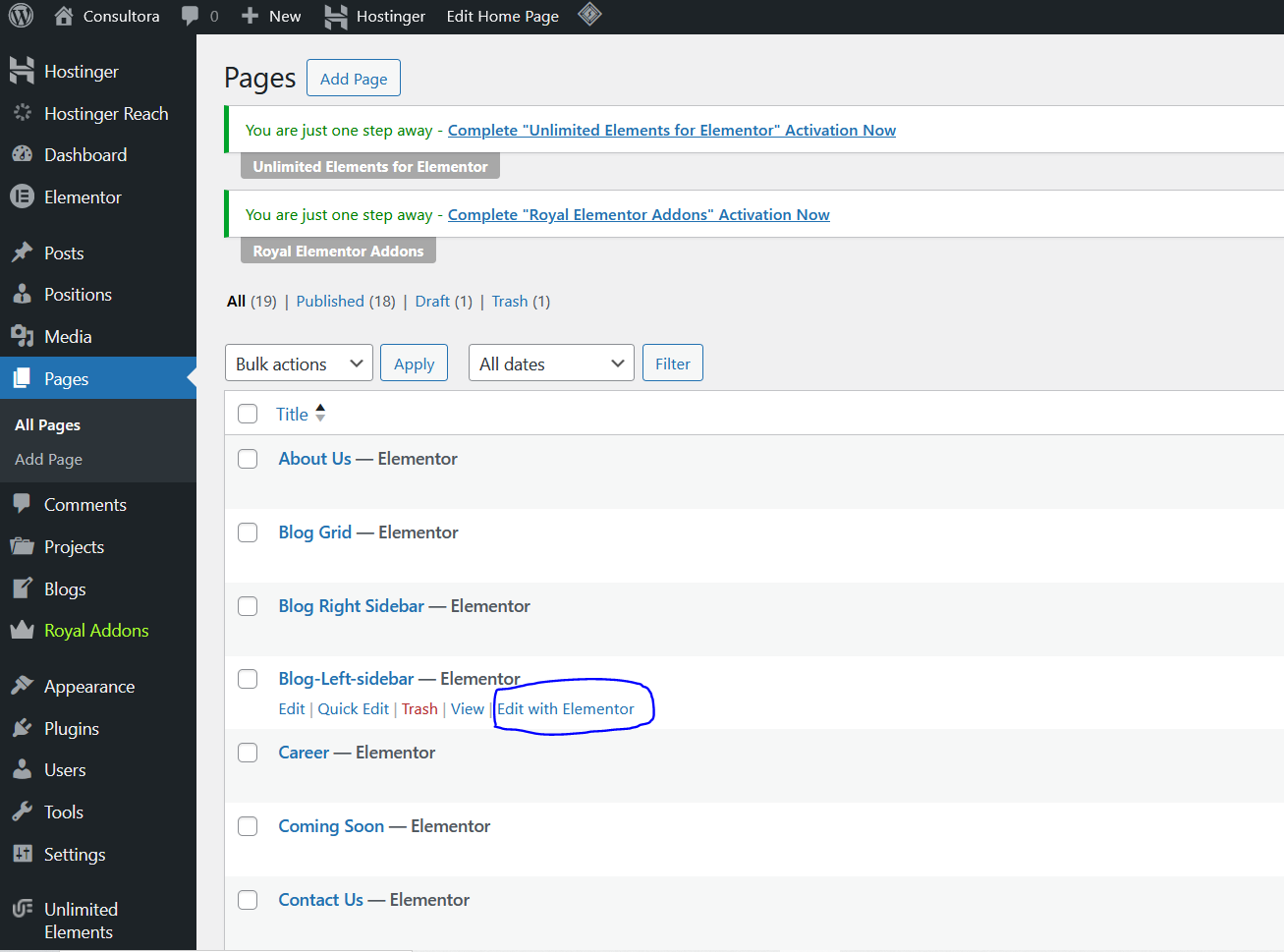
Editing a Page with Elementor
- Go to Pages in the admin and open any page.
- Click the Edit with Elementor button at the top.
- Use the left panel to drag and drop widgets onto the canvas.
- Click Update (bottom of the panel) when done.
Elementor Add-ons Included
| Add-on | Widgets / Features |
|---|---|
| Royal Elementor Addons | Advanced sliders, product layouts, team grids, pricing tables, and more. |
| Unlimited Elements for Elementor | Huge additional widget library for cards, timelines, counters, etc. |
Elementor Kit (Demo Layouts)
When demo content is imported, an Elementor Kit (consultora.zip) is
automatically imported. This brings in all the saved color palettes, typography presets,
and global settings used in the demo.
Support
All Consultora purchases come with 6 months of included support and free lifetime updates. Once your 6 months expire, you can extend support for additional 6 or 12 months.
How to Get Help
- Open a support ticket via your Envato account on the item page.
- Read through this documentation — most questions are answered here.
What Support Includes
- Answering questions about how to use the theme
- Answering technical questions about the theme's features
- Help with bugs or defects in the theme itself
- Updates to ensure ongoing compatibility and fix security vulnerabilities
What Support Does Not Include
- Theme customisation or custom coding requests
- Installation service
- Hosting, server environment or software configuration
- Compatibility with third-party plugins not listed in this documentation
- Support for outdated or modified versions of the theme
Credits & Third-Party Assets
Consultora may use third-party assets for demo and preview content. The following providers are credited here for transparency and proper attribution.
| Provider | Type | Website | Notes |
|---|---|---|---|
| Freepik | Stock photos, vectors, illustrations | freepik.com | Used for selected preview/demo visual assets where applicable. |
| Pexels | Royalty-free stock photography | pexels.com | Used for selected preview/demo photography where applicable. |
| Font Awesome | Icon library | fontawesome.com | UI and documentation icons. |
| Google Fonts (Inter) | Web font | fonts.google.com | Typography for this documentation site. |
Thank You
Once again, thank you so much for purchasing Consultora. I hope this theme exceeds your expectations. If you have questions or run into issues, please don't hesitate to reach out through the support system — I'm happy to help.
If Consultora has been valuable to you, please consider leaving a 5-star rating on ThemeForest — it means a lot and helps others discover the theme!